
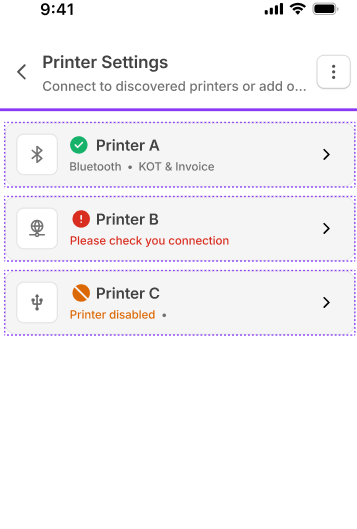
Once printers are connected, they appear in the Connected Printers section of the printer settings page.
If multiple printers are connected:
-
On larger screens, printers appear at the top of the screen and can be scrolled horizontally
-
On mobile devices, printers appear in a vertical list
Selecting a printer opens its configuration settings.
Users can perform the following actions while managing printers.
View connected printers
All connected printers are displayed in the printer settings screen. Selecting a printer displays its configuration details including enabled documents and printing preferences.
Switch between multiple printers
If multiple printers are connected, users can select a printer from the list or scroll through the printer cards to open and manage its settings.
Edit printer name
Users can rename printers to make them easier to identify.
Example:
-
Kitchen Printer
-
Billing Printer
-
Delivery Counter Printer
Enable or disable a printer
Printers can be temporarily enabled or disabled using the toggle switch.
When a printer is disabled:
-
Printing from that printer is paused
-
Printer settings become inactive
-
The Test Print option is disabled
Printer status indicators
Printer status is indicated using icons.
Green icon — Printer connected and enabled
The printer is connected and ready to print orders.
Orange icon — Printer disabled
The printer is connected but has been manually disabled.
Red icon — Printer connection issue
There is a connection problem between the device and the printer.
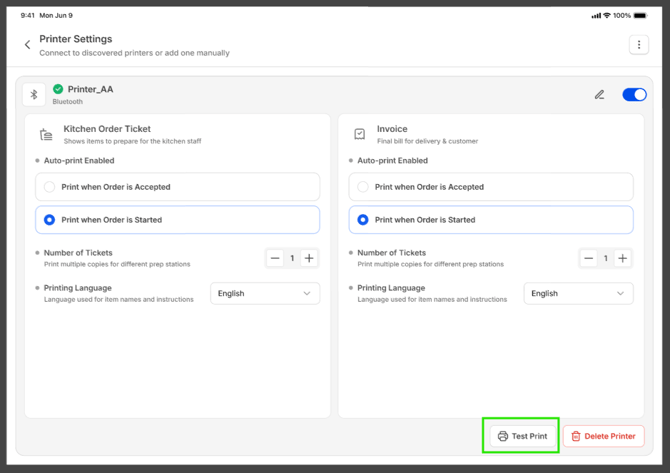
Test Printing
-
Users can verify that a printer is functioning correctly by performing a Test Print.
-
The test print option will generate a sample receipt to confirm that the printer is connected and operational.
-
If the printer is disabled, the Test Print option will not be available.
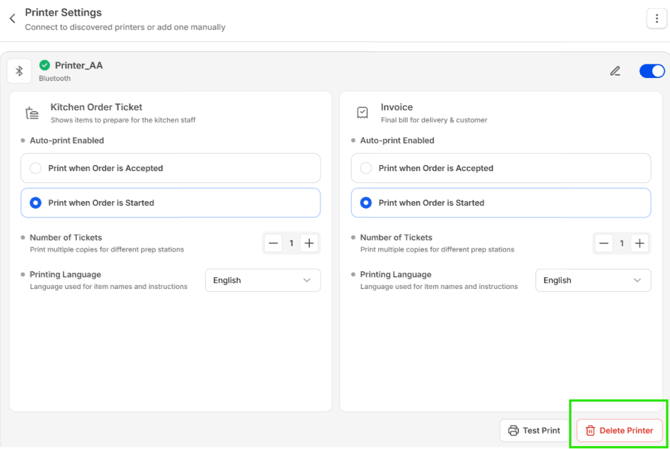
Removing a Printer
If a printer is no longer required, it can be removed from the system.
Steps
-
Open Printer Settings
-
Select the printer
-
Tap Delete Printer
-
Confirm the removal
Managing Connected Printer Settings
Each printer can be configured with specific printing preferences.
Available configuration options include:
Auto-print settings
Users can configure when documents should automatically print.
Available options:
-
Print when the order is accepted
-
Print when the order is started
Number of tickets
Users can set how many copies of the receipt should be printed.
This is useful when printing tickets for multiple kitchen preparation stations.
This is only applicable for auto printing, not for manual printing
Printing language
Users can configure the language used for printing receipts.
Supported languages include:
-
English
-
English + Arabic
-
Arabic
-
Spanish
-
Portuguese
Next Article: