
To help teams manage orders efficiently in line with their operational workflows, grubOne offers two layout options: Tile View and Split View. These layouts are optimized for both kitchen and retail environments, enabling staff to process orders quickly and accurately. Users can choose their preferred layout during the initial setup or update it at any time through General Preferences.
1. Tile View
Tile View presents orders as dynamic cards arranged in a grid format. Each card automatically adjusts its height based on the number of items and the order details, allowing users to see as many orders as possible at a glance.
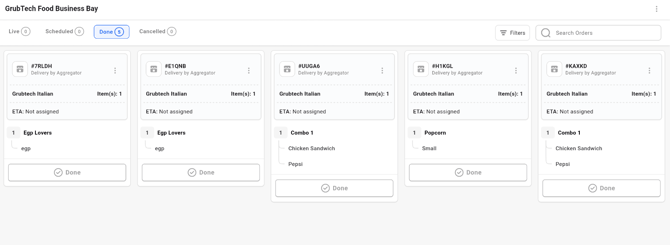
Key Features
- Provides a unified view of all incoming orders displayed as individual cards.
- Allows users to take action directly from the order cards.
- Cards resize automatically based on the order content, ensuring all essential details are visible without opening the card.
- The number of visible cards adapts to the device’s screen size and orientation.
- Maintains a consistent layout across the Live, Done, and Cancelled tabs for a seamless workflow.
2. Split View
Split View divides the interface into two functional sections: a compact order list on the left and a detailed view of the selected order on the right. This layout is ideal for operations that prefer focusing on one order at a time while still maintaining visibility of all incoming orders.
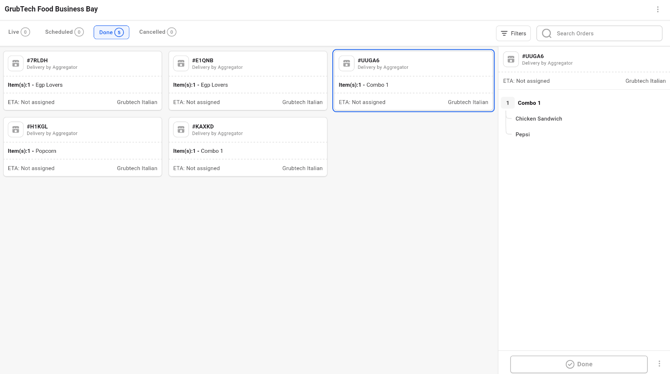
Key Features
-
The left panel displays a condensed list of all orders, allowing users to quickly identify pending or active orders.
-
Selecting an order from the list reveals its full details in the right panel, enabling staff to concentrate on one order without losing context.
-
The layout remains consistent across the Live, Done, and Cancelled tabs, ensuring a smooth and familiar workflow throughout the application.
How to Set Up (Applicable to Both Layouts)
Users can select their preferred layout, Tile View or Split View. Either during the initial setup or at any time through the app’s settings.
During Initial Setup
- When logging in for the first time, the app will prompt you to choose a layout.
- Select Tile View or Split View based on your operational preference.
- Save your selection.
- All new incoming orders will be displayed using the chosen layout.

From General Preferences
- Navigate to Settings > General Preferences.
- Under the Layout section, choose Tile View or Split View.
- Click Save to apply the new layout.
All tabs (Live, Done, and Cancelled) will automatically reflect the selected layout for a consistent viewing experience.
Next Article: