
Introduction
grubOne provides powerful search and filtering capabilities that enable kitchen and retail staff to quickly locate and manage orders.
All results are displayed in the user’s selected layout (Tile View or Split View), ensuring a consistent and efficient workflow.
Searching for Orders
The search function allows you to quickly locate specific orders using the Order ID.
Steps to Search for an Order
-
Tap the Search icon on the order screen
-
Enter the Order ID
-
Matching results will appear dynamically.
-
Select the desired order to view it in your selected layout
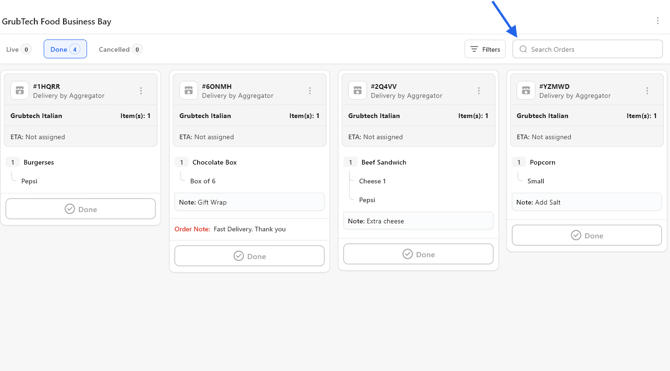
💡Note: Search applies only to the tab you are currently viewing (Live, Done, or Cancelled).
Filtering Orders
Filters allow you to refine the order list based on specific criteria.
Steps to Apply Filters
-
Tap the Filter icon on the order screen
-
A filter panel will slide in from the right
-
Browse available filter categories (e.g., Order Source, Brand, Fulfilment Type)
-
Select one or more options within each category
-
Tap Apply
The panel will close, and only matching orders will be displayed.

💡Note: Filters apply only to the tab you are currently viewing (Live, Done, or Cancelled).
Resetting Filters
You can quickly remove all applied filters and restore the full order list.
Steps to Reset Filters
-
Open the Filter panel
-
Tap the Reset button at the bottom
-
The button displays the number of active filters
(e.g., Reset 2 filters)
-
-
Confirm the action in the pop-up
All filters will be cleared, and the full order list will be restored.
Searching Within Filters
To simplify navigation, search functionality is available in filter categories with multiple options.
Steps
-
Open the Filter panel
-
Locate a category with more than five options
-
Use the search bar within the category
-
Enter your keyword
-
If no results are found, the search bar border turns red, and a notification will appear indicating that no matching options are available.
Important Note 💡
Both Search and Filter functions:
-
Apply only to the current tab (Live, Done, Cancelled)
-
Display results in your selected layout (Tile View or Split View)
Next Article: