
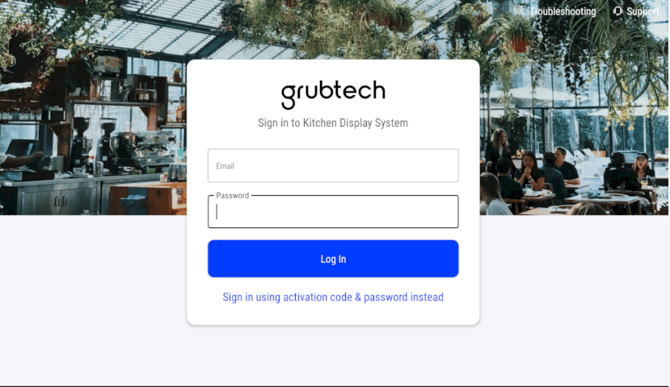
Activating the KDS enables a dedicated station within the kitchen. Each KDS device requires specific permissions to be granted during the setup process. Once permissions are approved, users can sign in using their Grubcentre account email and password.
After successful activation, users can select the appropriate kitchen and station to begin using the device.
To activate a KDS device, follow these steps:
- Allow all permission pop-ups that appear on the screen.
- Log in using your Grubcentre account email and password.
- Select the kitchen and station you want the device to operate with.
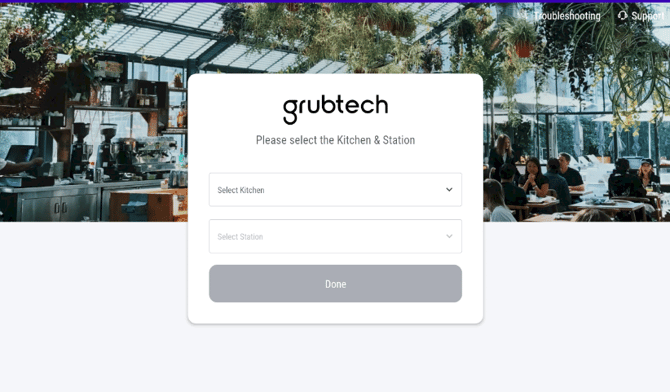
- Click "Done" to complete the login process.
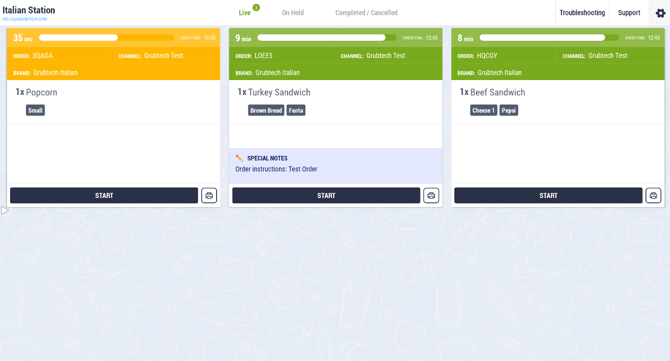
Note: In case the user only have one station created for your brand, the system will skip this step and directly show the Orders Screen.
Steps to deactivate gKDS
- Navigate to the Settings Panel within the KDS application.
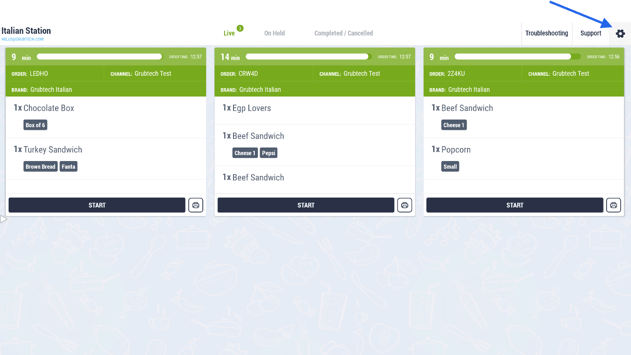
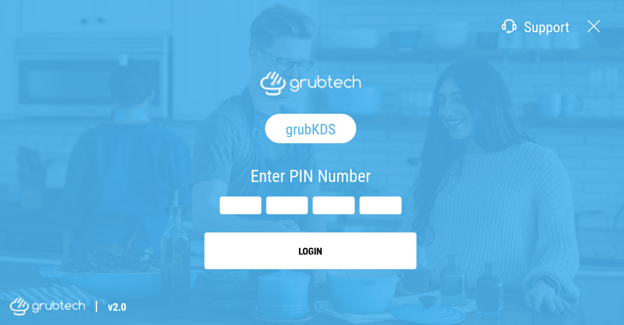
- Enter the user 4-digit PIN.
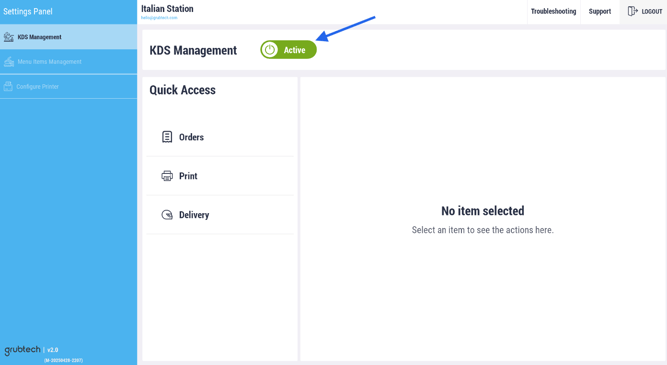
- Choose KDS Management from the left side menu options.
- Click on the KDS Management Active toggle to deactivate gKDS account.
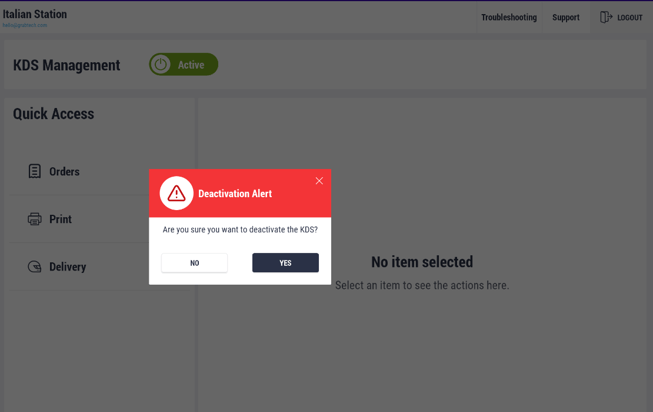
- Select Yes to proceed with the deactivation, or No to disregard the action.
Next Article: